Introduction to Automatic Installation and Mod Downloads
To install mods for Minecraft, you first need to install a “mod loader” (such as NeoForge or Fabric), and then install the mods you want. HMCL provides powerful support for both steps.
Before installing, the most critical point is compatibility. Please keep the following core principles in mind:
- Normally, you can install only one mod loader per game instance.
- The mods you download must be compatible with both your game version (such as 1.20.4) and your mod loader (such as Fabric).
In short, installing mods for the game takes three steps, and this guide walks you through them one by one:
- Enable version isolation to create a separate, clean environment for mods.
- Install a mod loader (such as Forge or Fabric).
- Install the mods you like.
Enabling Version Isolation
Before installing mods, you must enable version isolation so that the mods installed for different instances are kept apart:
On the HMCL main page, click “Settings”, then in the “Global Game Settings” tab find “Version Isolation”, click “Version Isolation”, and select “Separate for Each Instance”.

For a more detailed introduction, see Global Version Isolation.
Installing a Mod Loader
Introduction to Mod Loaders
The common mod loaders are:
Forge, NeoForge, Fabric, Quilt, Cleanroom, and LiteLoader are 6 common mod loaders.
Fabric API and QSL/QFAPI are the two official APIs that accompany Fabric and Quilt (in practice, they are mods).
Compatibility:
- LiteLoader and Forge are compatible (newer Forge versions and older LiteLoader versions may be incompatible), and can be installed at the same time
- Almost all other mod loaders are mutually incompatible, meaning you cannot install two mod loaders at the same time
Notes on Fabric and Quilt:
Very many Fabric Mods require Fabric API as a prerequisite mod, and Quilt Mods require QSL/QFAPI as a prerequisite mod.
When installing the Fabric or Quilt loader, unless there is some other reason, it is recommended to install Fabric API or QSL/QFAPI; otherwise many Fabric Mods or Quilt Mods may fail to load!
Installing a Mod Loader When Installing a New Instance
When you install a new game client, you will see installation options for the mod loaders supported by that version. Click the mod loader you want to install (choose it based on the loader supported by the mods you want to install).
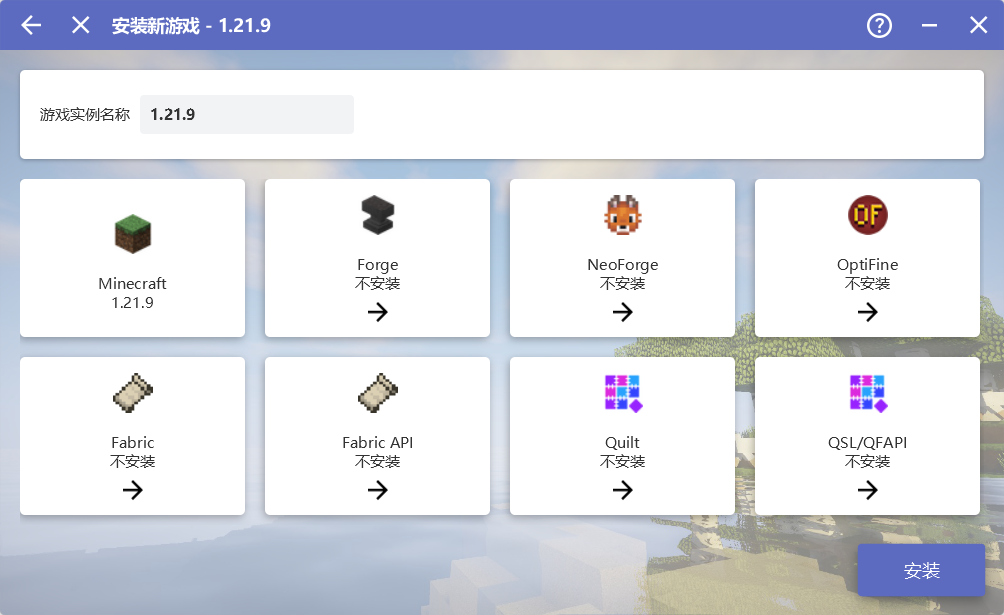
- Click the loader you want (such as Fabric).
- On the version selection page that appears, unless you have special requirements, choose the latest stable version (usually the first one).
- If you choose
FabricorQuilt, it is best to installFabric APIorQSL/QFAPIat the same time. - Click “Install”.
Installing or Replacing a Mod Loader for an Existing Instance
If you want to add a loader to an already installed vanilla game, or replace or update the loader version:
- On the HMCL main page, click “Instance Management”, then select the game instance you want to modify.
- In the left menu, click “Automatic Installation”.
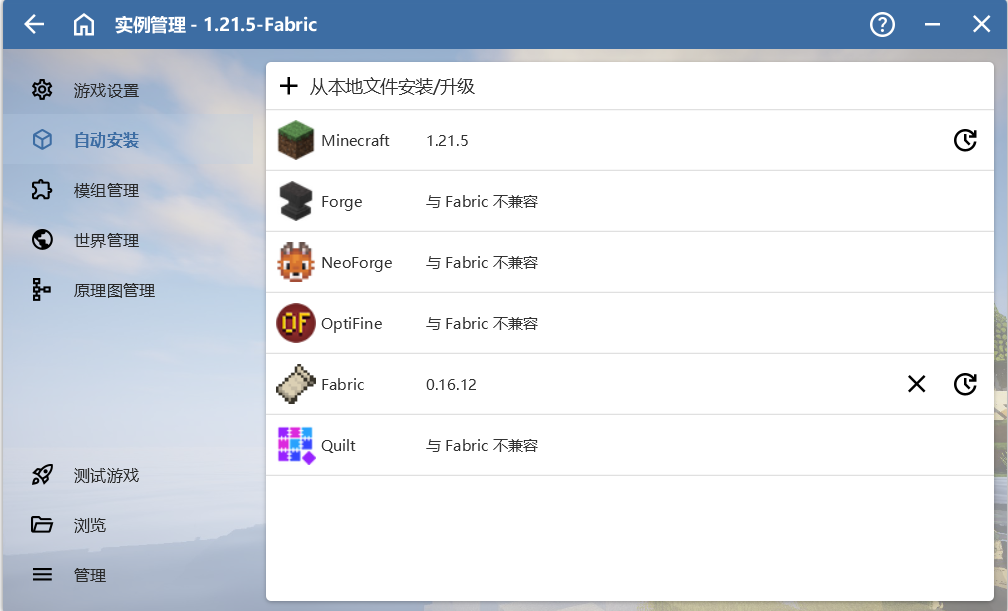
- Install: click the icon of the loader you want (such as Forge), choose a version (the latest version is recommended), then click Install.
- Update: click the installed loader, choose a newer version, then click Install.
- Delete: click the “X” button on the right side of the loader to delete it.
- Replace: first delete the old loader, then install the new one.
Note: the automatic installation page here does not support installing
Fabric APIorQSL/QFAPI. Please install them as ordinary mods.
Installing Mods
Once the loader is installed, you can start adding mods. You can get mod information from the following websites, and download and install mods within HMCL:
- MCMod - a Chinese community with detailed information.
- CurseForge - one of the largest mod hosting sites.
- Modrinth - a newer, modern mod hosting site.
Before installing any mod, please confirm three things:
- Game version: Does the mod support your current game version? (such as 1.20.4)
- Loader type: Is the mod for Forge, Fabric, or another mod loader?
- Prerequisite mods: Does the mod require other mods as prerequisites? (The mod page usually states this.)
Automatic Installation (Recommended)
HMCL has built-in search and download support for CurseForge and Modrinth, which is very convenient.
- On the HMCL main page, click “Downloads” -> “Mods”.
- Enter the mod name in the search box (both Chinese and English are supported), then click search. If you cannot find it, try switching the download source in the upper right corner.
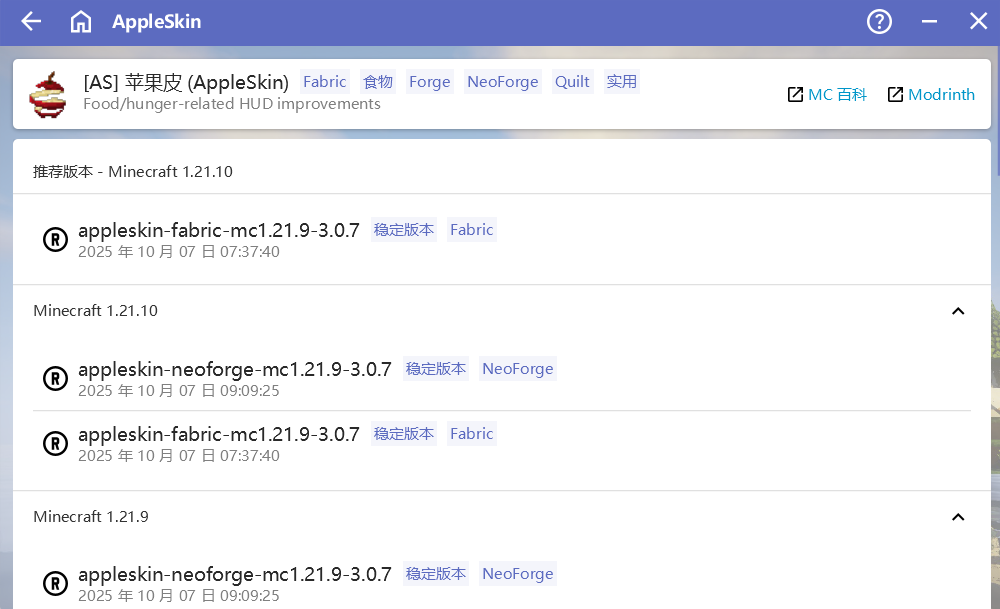
- Click the mod you want to open its version list page.
- Based on the game version and loader, find the version you need, click it, and choose “Install to Current Instance”.
- If the mod has prerequisites, HMCL will prompt you automatically; please install all prerequisite mods first (but do not install prerequisite mods more than once).
Note: clicking the blue link at the top of the mod download page takes you to the corresponding website to view the mod’s information, which tells you what the mod does and may also warn you about some precautions.
Note: please check whether the mod you want to download matches the game version and mod loader you are installing for, otherwise the mod cannot be loaded properly!
Installing OptiFine or Other Shader Mods
Shaders are installed slightly differently; please refer to the dedicated guide Shader Installation.
Manual Installation
If you have downloaded mod files manually from a website or elsewhere, you can follow the steps below to complete the installation:
Mod files usually have the extension jar or litemod; please make sure the extension is correct. jar is the format supported by most mod loaders, while litemod is supported only by LiteLoader.
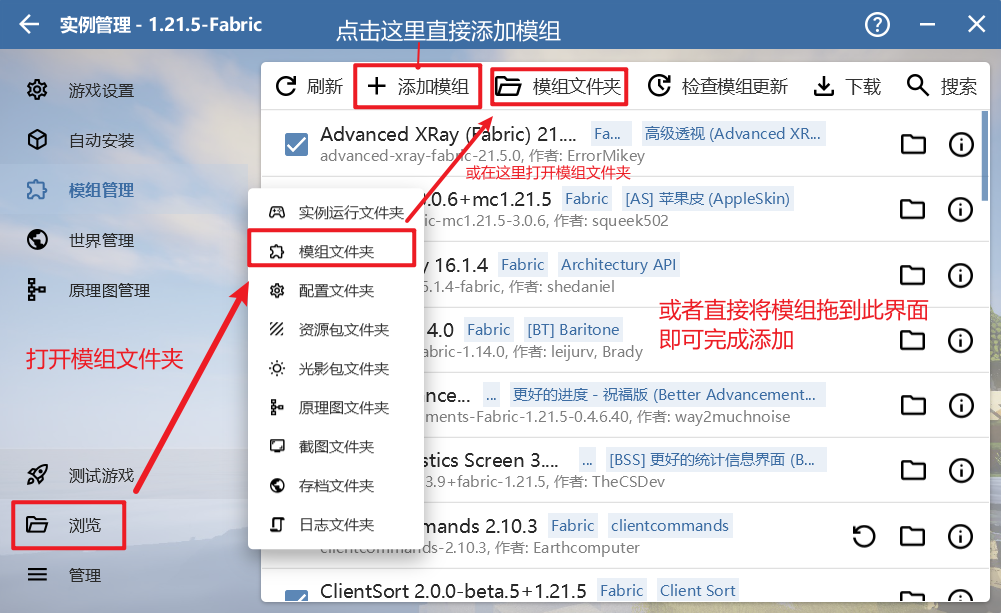
Via the Mod Management Page
- Go to “Instance Management” -> select your game instance -> “Mod Management”.
- Click “Add Mod” and choose your mod file, or simply drag the file into the window.
Via the Mods Folder
- Go to “Instance Management” -> select your game instance -> “Browse” -> “Mods Folder”.
- This opens the
modsfolder of that instance. - Copy or move the
.jarmod files you downloaded into this folder. (If themodsfolder does not exist, create one yourself.)
Game Errors or Failure to Start After Installing Mods
There are many reasons for game errors, such as incompatibility between mods, a Fabric API version that is too high, missing prerequisite mods, and so on.
Step 1: Basic checks (the most common problems)
- Check HMCL’s error report: newer HMCL versions directly report most common errors, and this is your first source of information.
- Check compatibility: confirm that the mod version, game version, and mod loader all match.
- Check prerequisite mods: have you forgotten to install a required API (such as Fabric API) or other prerequisite mods?
Step 2: Troubleshoot it yourself
- Use the “binary search” method: on the “Mod Management” page, first disable half of the mods and see whether the game can start or still errors. If it starts, the problem is in the disabled half. Repeat this process until you find the specific mod causing the problem.
- Check the log files: if you are able to, you can examine the game logs yourself to locate the problem.
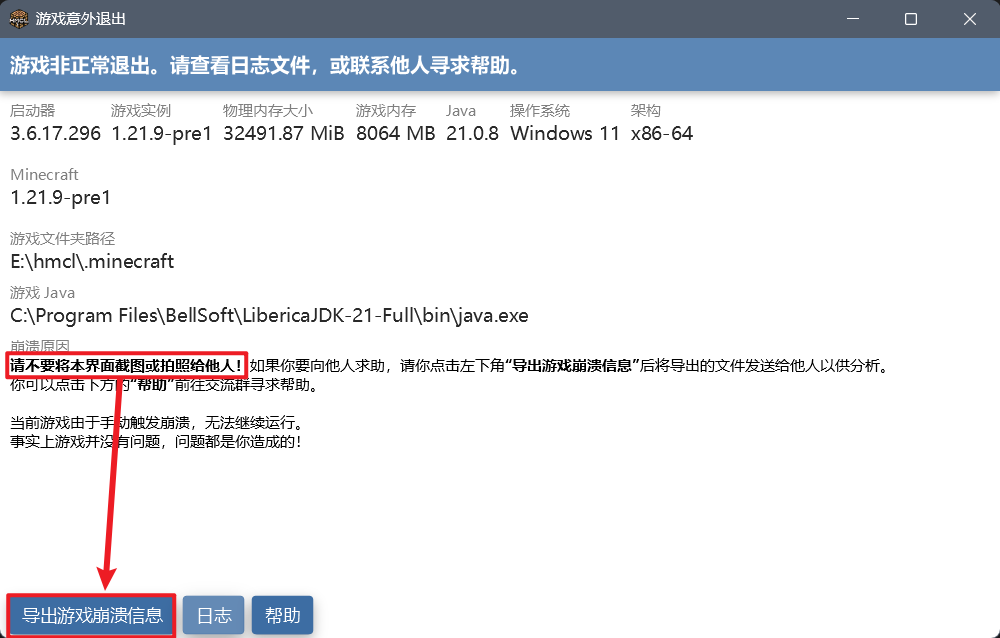
Step 3: Ask for help effectively If you cannot solve the problem yourself, you need to ask the community for help. But remember that an effective request for help includes the complete log file.
How to ask for help correctly:
- After the game crashes, click the “Export Game Logs” button on the error window that HMCL displays; it generates a file named
minecraft-exported-crash-info-<timestamp>.zip. - Take this file to the community, forum, or chat group and ask your question, and describe the problem you encountered in concrete terms.
Important: when asking others for help, never just post a screenshot, and never say vague things like “the game errors, what should I do?”. Without logs, no one can help you.
Appendix: Brief Introduction to Common Mod Loaders and Supported Versions
Brief introduction to mod loaders:
| Mod loader | Brief introduction |
|---|---|
 Forge | A veteran mod loader with powerful features and support for a huge number of mods; recommended before 1.21. |
 NeoForge | The successor to Forge after 1.20.1; it is recommended to install NeoForge from version 1.21 onward. |
 Fabric | A lightweight mod loader, very suitable for optimization mods or vanilla-survival enhancement mods. |
 Quilt | A fork of Fabric that is equally lightweight. |
| Fabric API QSL/QFAPI | Because Fabric and Quilt are lightweight with limited features, they provide APIs with enhanced functionality, and many mods depend on these APIs. |
 Cleanroom | An optimized replacement for Forge on 1.12.2 offering relatively stronger features; supports only 1.12.2. |
 LiteLoader | A lightweight mod loader, a lightweight alternative to Forge; no longer maintained. |
Supported versions at a glance:
| Mod loader | Oldest version | Latest version |
|---|---|---|
| Forge | 1.5.2 | Latest game version |
| NeoForge | 1.20.1 | Latest game version |
| Fabric | 1.16.3 | Latest game version |
| Fabric api | 1.16.3 | Latest game version |
| Quilt | 1.16.3 | Latest game version |
| QSL/QFAPI | 1.18.2 | 1.21 |
| Cleanroom | 1.12.2 | |
| LiteLoader | 1.5.2 | 1.12.2 |