Changing Skins in Offline Mode
Using Steve, Alex, or a local skin image file: you may be unable to join multiplayer, and other players may not be able to see your skin
Using LittleSkin or a Blessing Skin server: in multiplayer, players who use the same method as you can see your skin, but other players cannot
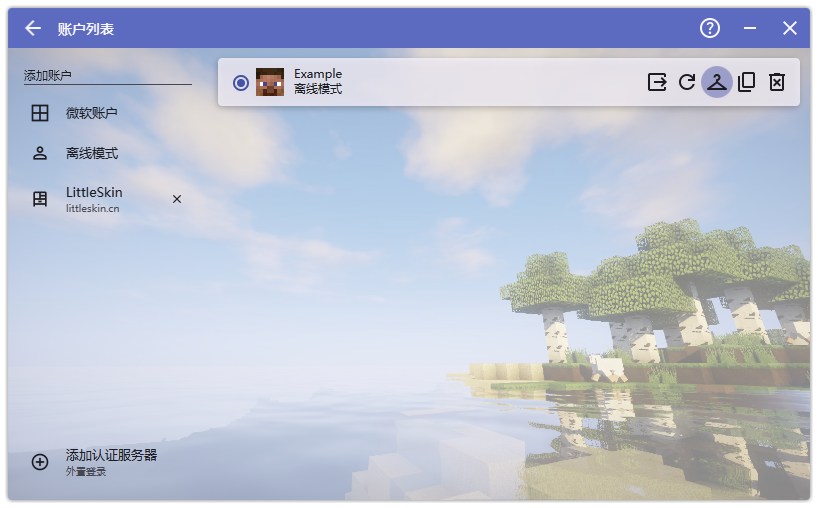
Open HMCL and go to the account list, then click the Upload/Edit Skin button of the offline-mode account shown below (in the red box).
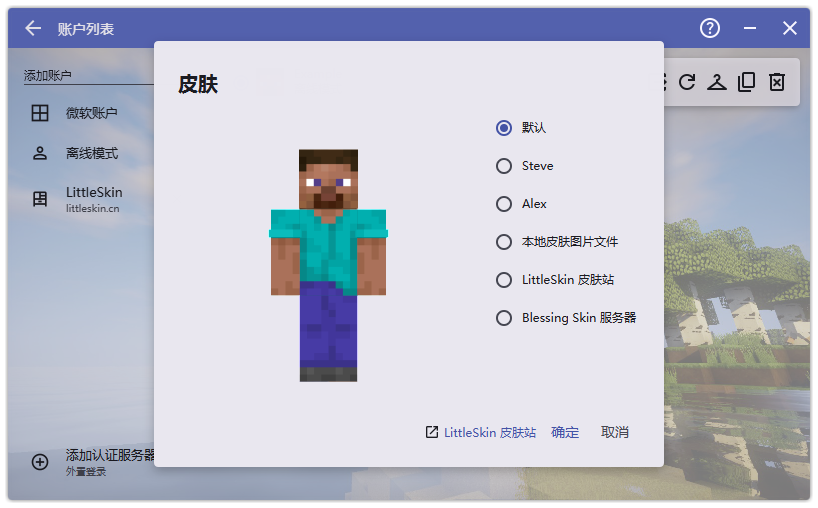
Default: use the default random skinSteve: use the Steve skinAlex: use the Alex skin- Local skin image file
- LittleSkin
- Blessing Skin server
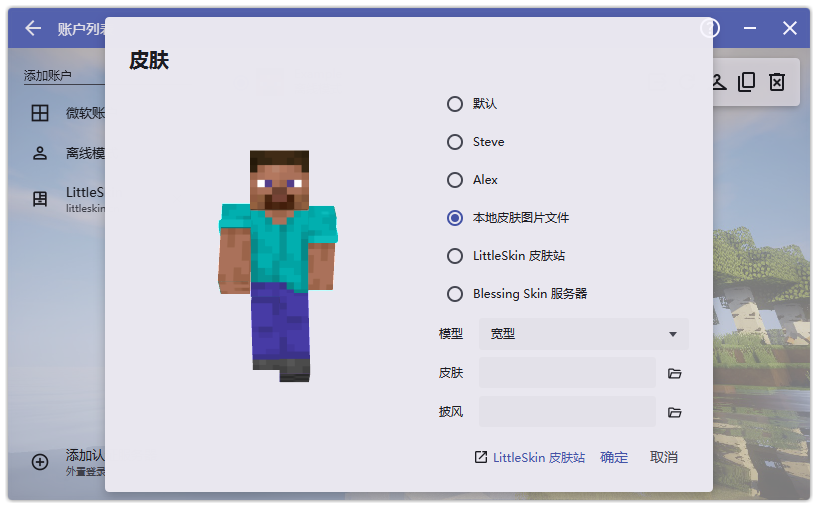
Local Skin Image File
After selecting a local skin image file, set the resource path for the skin and for the cape as needed, then click Confirm.
LittleSkin
First, you need a LittleSkin account. Register and log in.
Then go to Character Management and check your character name. If you do not have one, click the add new character button to add one.
You can change the skin and cape of this account name in My Wardrobe.
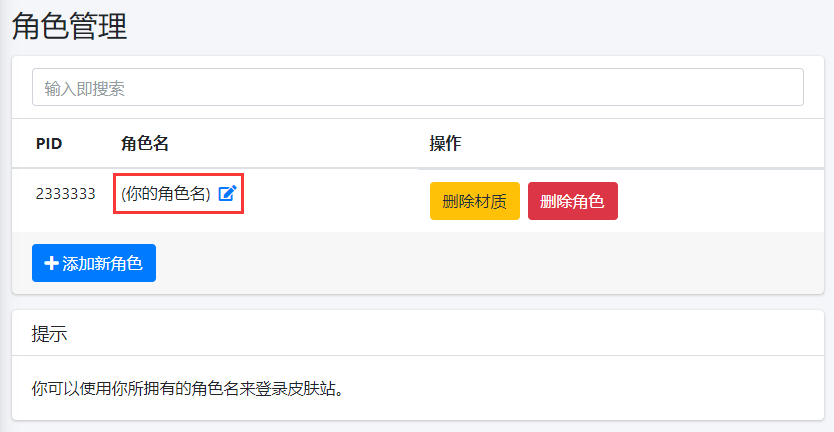
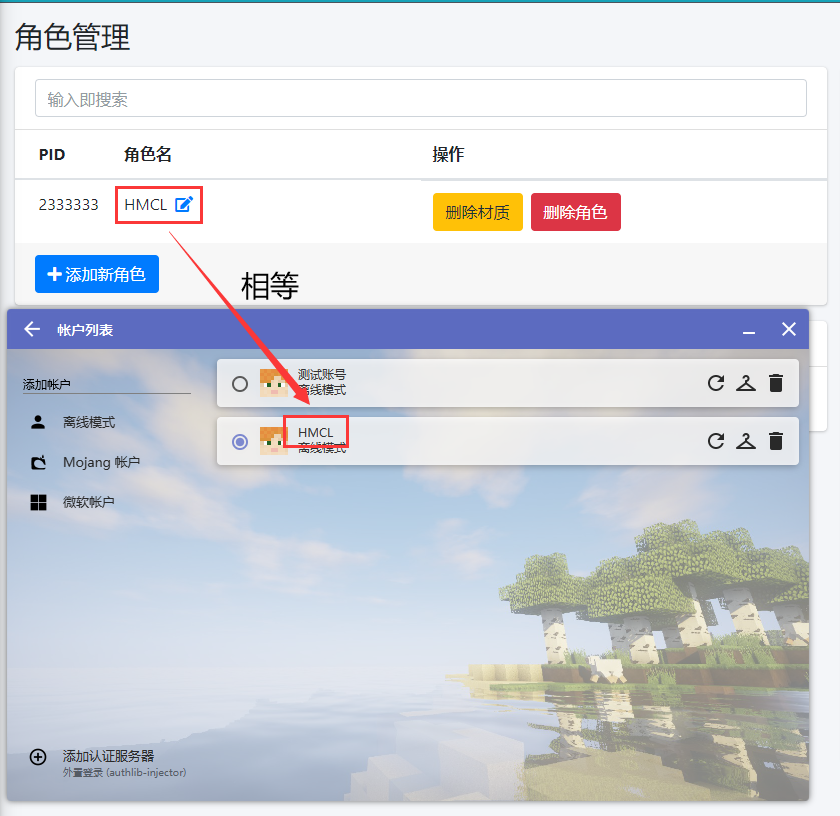
The character name must match the character name of the offline-mode account in HMCL. If it does not match, switch to the corresponding offline-mode account in HMCL, or create a new offline-mode account whose name matches the character name.
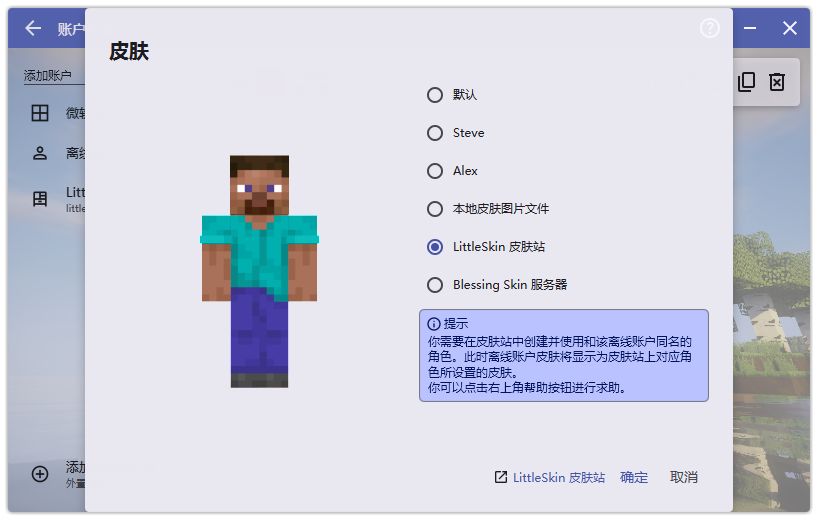
Once you have confirmed that the offline-mode account’s character name matches, click LittleSkin to sync the skin from LittleSkin.
Blessing Skin Server
Go to Character Management and check whether the character name matches the character name of the offline-mode account in HMCL. If it does not match, switch to the corresponding offline-mode account in HMCL, or create a new offline-mode account whose name matches the character name.
You can change the skin and cape of this account name in My Wardrobe.
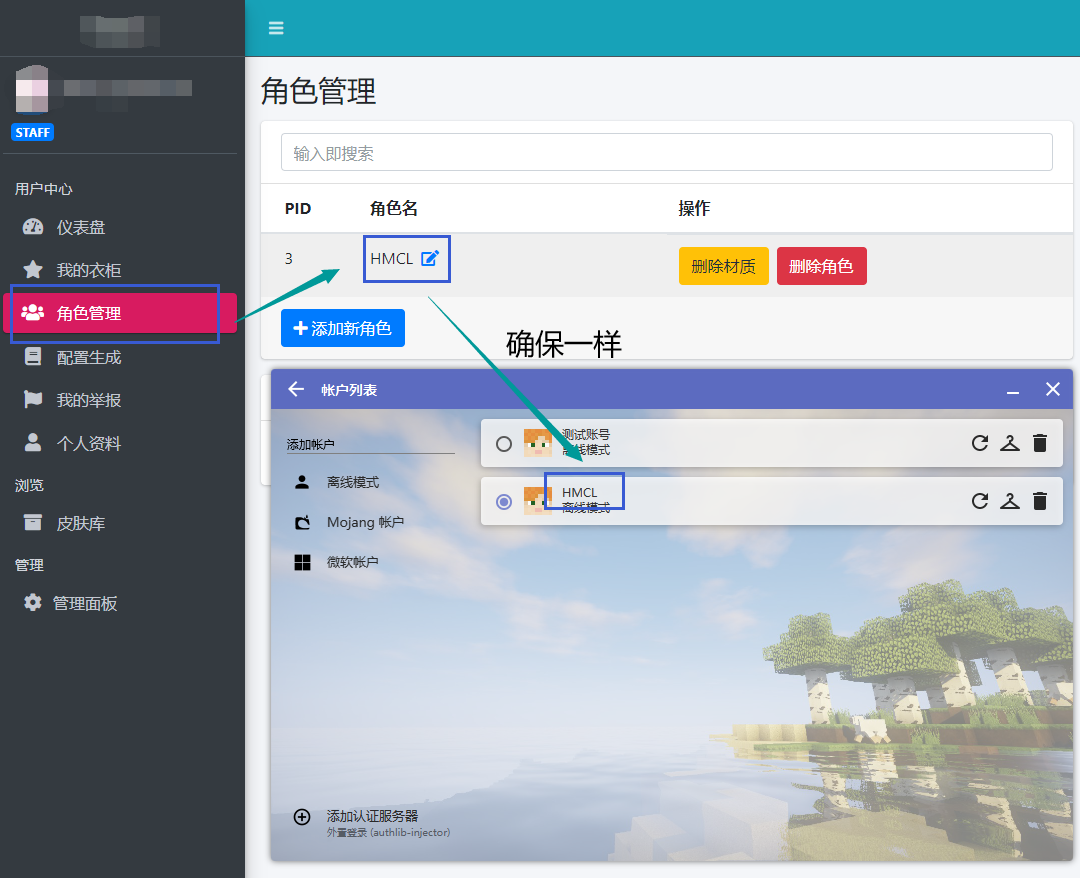
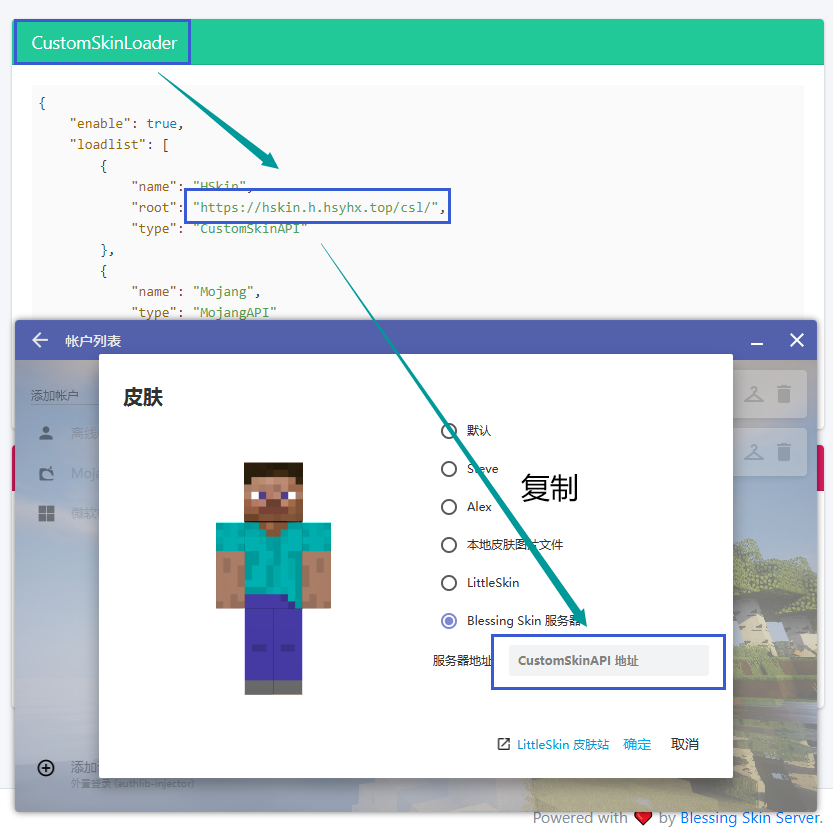
Go to Configuration Generator and, as shown in the figure below, find the URL under CustomSkinLoader. Copy it into HMCL to sync the skin of this account name on the Blessing Skin server.