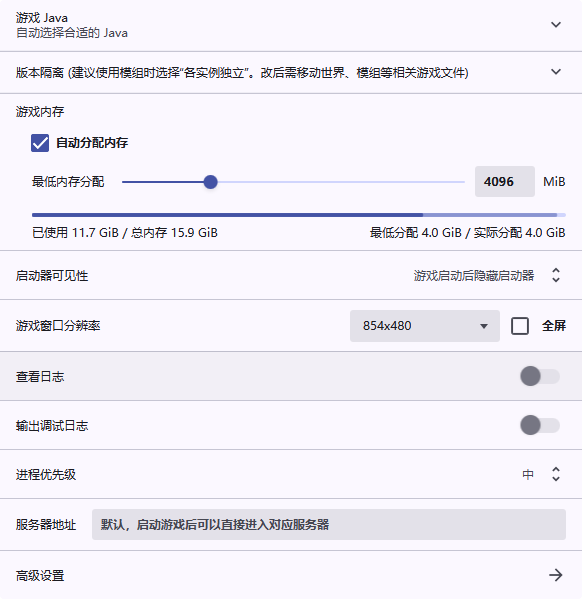
Introduction to the Interface
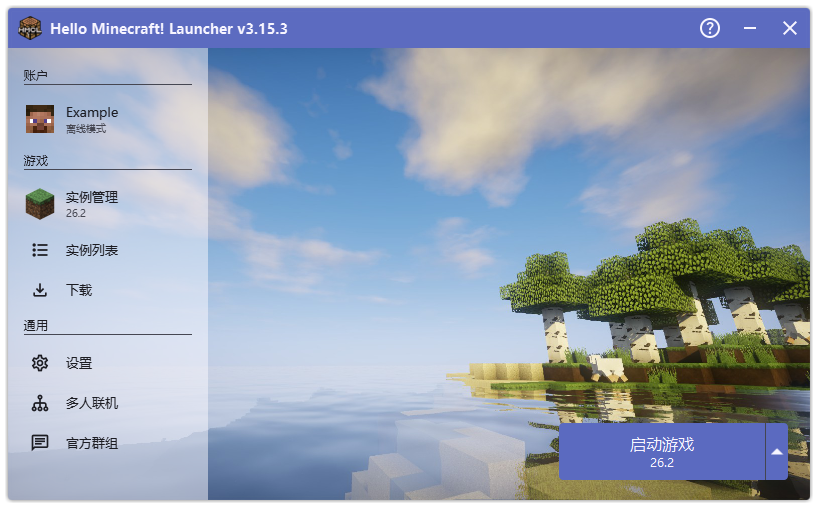
The launcher interface as a whole consists of a top toolbar and a page container.
Top Toolbar

Users can double-click the toolbar to toggle between the maximized and normal window states.
This area is always displayed and is divided into two parts, left and right. The left side consists of a back button (shown only on second-level or deeper pages) and the title; the right side consists of a help button, a minimize button, and a close button.
Back button: Click to return to the previous page. It is shown only on second-level or deeper pages, not on the home page.
Title: Usually displays the page name; on the home page it displays the launcher version information.
Help button: Click to jump to the documentation help page.
Minimize button: Click to minimize the launcher.
Close button: Click to close the launcher.
Home Page
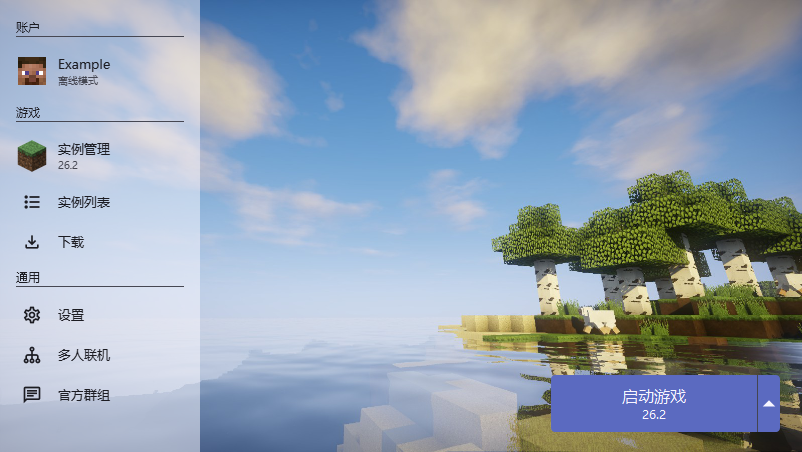
The home page is the launcher’s starting page. It consists of a sidebar navigation bar, a tips panel (development and preview builds only), an update panel (shown only when an available update exists), and a launch game panel.
Sidebar (Home Page)
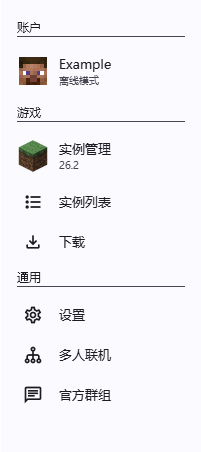
This area is divided into three groups: the account group, the game group, and the general group.
Account group: This group contains one list item, which displays the avatar, name, and account type of the currently selected account. Clicking this item opens the account list page; right-clicking it opens a quick menu for switching accounts.
Users can scroll the mouse wheel over this item to quickly switch between accounts.
Game group: This group contains three list items: Instance Management, Instance List, and Downloads.
- Instance Management: This item displays the icon and name of the currently selected game instance. Clicking it opens the instance management page; scrolling the mouse wheel over it quickly switches between game instances.
- Instance List: Clicking this item opens the instance list page, which is used to view and manage game instances.
- Downloads: Clicking this item opens the downloads page, which is used to download games or modpacks, or to install mods, resource packs, shaders, or worlds.
General group: This group contains three list items: Settings, Multiplayer, and Official Groups.
- Settings: Clicking this item opens the Settings page.
- Multiplayer: Clicking this item opens the multiplayer page.
- Official Groups: Clicking this item navigates to the Settings · Feedback page.
Tips Panel
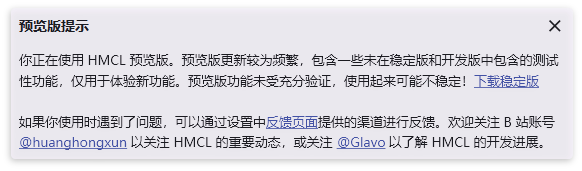
Users can hide this tip by clicking the close button in the upper right corner.
Shown only in development or preview builds; it reminds users that the current launcher is not a stable version.
Update Panel
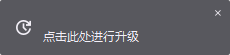
Shown only when an available update exists; this area provides launcher update notifications.
Launch Game Panel

This area is divided into two parts: the launch (start) game button and the switch instance menu.
Launch (start) game button: If an instance currently exists, clicking it launches the currently active game instance; if no game instance currently exists, clicking it automatically downloads the latest stable version and then launches the game.
Switch instance menu: Click to display a menu for quickly switching between game instances.
Settings
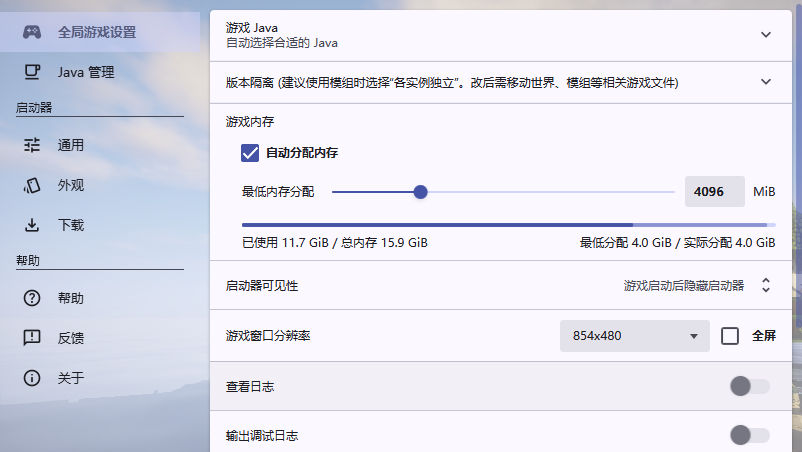
This page consists of a sidebar navigation bar and a page container.
Sidebar (Settings)
This area is divided into four parts: Global Game Settings, Java Management, the launcher group, and the help group.
Global Game Settings: Clicking this item opens the Global Game Settings page.
Java Management: Clicking this item opens the Java Management page.
Launcher group: This group contains three list items: General, Appearance, and Downloads.
Help group: This group contains three list items: Help, Feedback, and About.
Global Game Settings