Tutorial for Creating a Server Auto-Update Modpack
HMCL allows server administrators to distribute modpack updates automatically by means of a server auto-update modpack. This greatly helps server administrators who need to update game client Mods, configurations, and similar information frequently.
HMCL requires the server administrator to additionally provide an HTTP server (static file serving is all that is needed; for example, Apache or Nginx will both work) so that HMCL can check for modpack updates and download the update files.
Step 1: Export the Modpack
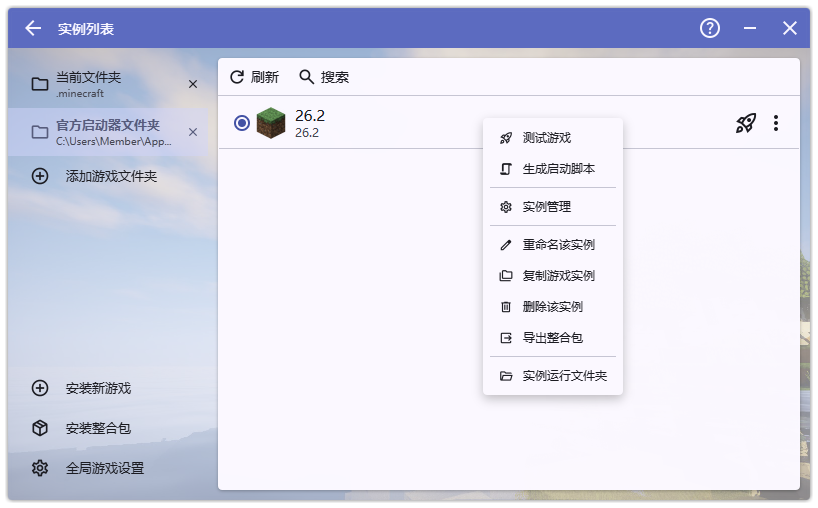
In HMCL, right-click the client version you have prepared and choose Export Modpack:
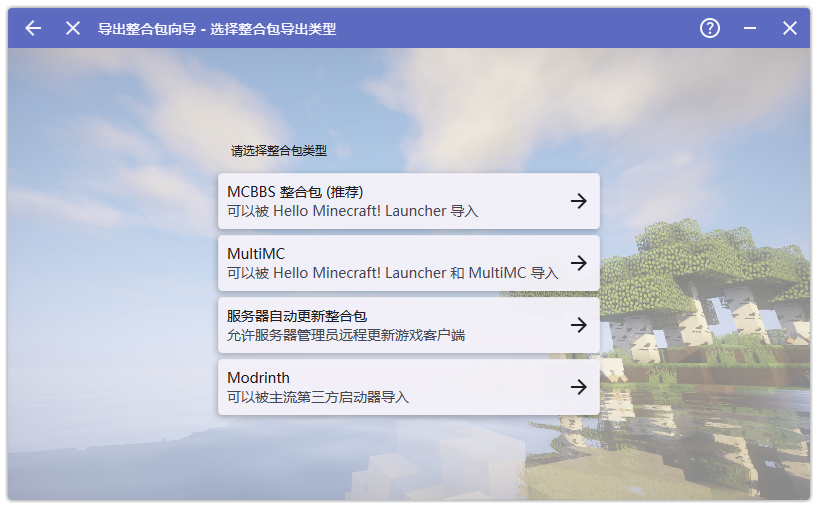
Choose to export it as a Server Auto-Update Modpack:
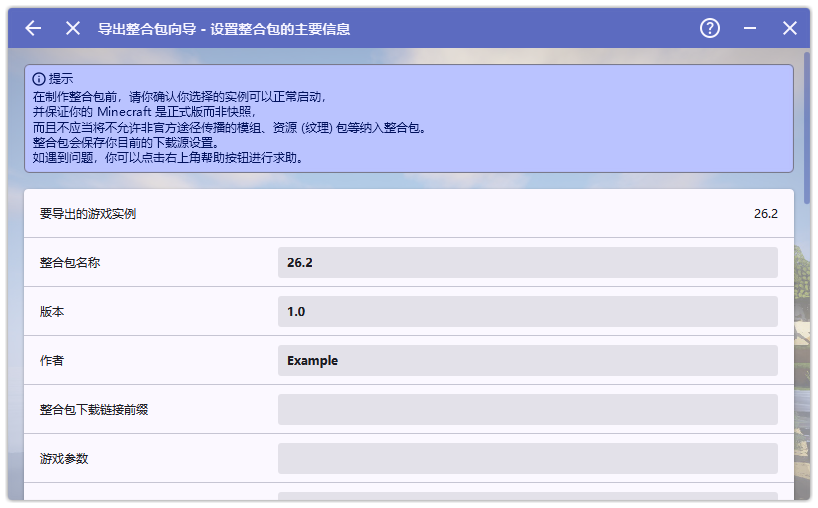
Fill in the modpack information; see below for how to fill in the modpack download URL prefix
After selecting the files that need to be included in the modpack, a modpack archive file will be generated
Step 2: Import the Modpack
Next, create a brand-new empty folder and copy the launcher into it
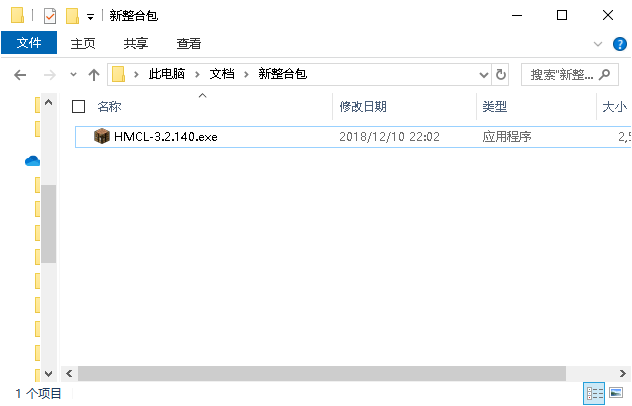
Run the launcher and import the modpack you just exported. After the import is complete, this folder (called “New Modpack” here) can be packed up and distributed to players.
Step 3: Deploy the Modpack Update Server
You can use HTTP server software that supports static files, such as Apache or Nginx, to serve the files. First, decide on the modpack download URL prefix. For example, if I want HMCL to read the modpack update information stored in the http://www.site.com/modpack directory on the remote server, then I fill in http://www.site.com/modpack in the modpack download prefix when exporting the modpack.
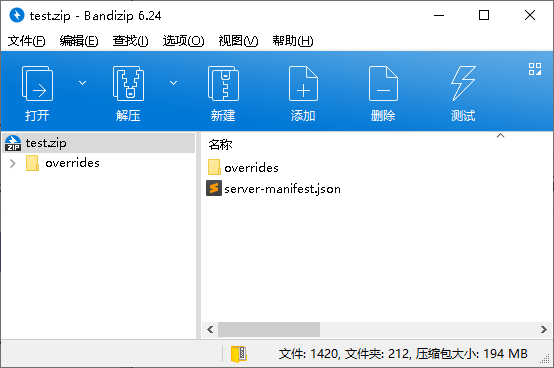
The image above shows the contents of the exported server auto-update modpack archive. You need to extract this modpack under http://www.site.com/modpack. That is, the file downloaded from the link http://www.site.com/modpack/server-manifest.json must be identical to the server-manifest.json file in the modpack archive shown above. Moreover, http://www.site.com/modpack/overrides is a folder that stores the modpack files, for example:
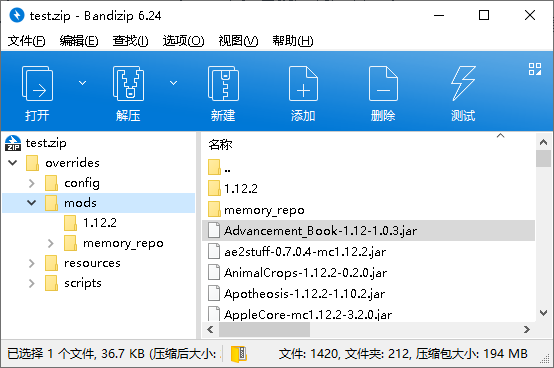
The file test.zip/overrides/mods/Advancement_Book-1.12-1.0.3.jar in the modpack archive must be downloadable from http://www.site.com/modpack/overrides/mods/Advancement_Book-1.12-1.0.3.jar, with identical file content. At this point, the update server has been fully deployed.
Step 4: Update the Modpack
If you need to update the modpack, export a new modpack archive following Step 1, and extract it into a folder such as http://www.site.com/modpack to complete the deployment of the new modpack.