A Collection of Common Questions
This is a document for beginners and novices, designed to help you get started with the HMCL launcher and Minecraft in the simplest way possible. If you want to learn more about a certain topic, you can click the links provided in this article to view the detailed documentation. This is not a Minecraft speedrun guide or a “how to survive your first night” kind of thing. If you want to play Minecraft by following a tutorial and fully enjoy its fun, the tutorials on the Chinese Minecraft Wiki may be more suitable for you.
How to log in to an account
Generally speaking, you need to use a Microsoft account to purchase the game in order to play Minecraft; alternatively, you can use an offline account or an external account.
You can purchase the game on the Minecraft official website or in the Xbox Store.
After completing the purchase, click “Accounts” in the upper left corner of the HMCL main interface, then click “Microsoft Account” on the left to log in to your account, or click “Offline Login” to create an offline account.
How to download the game
Downloading Minecraft with HMCL is very simple; it only takes a few steps.
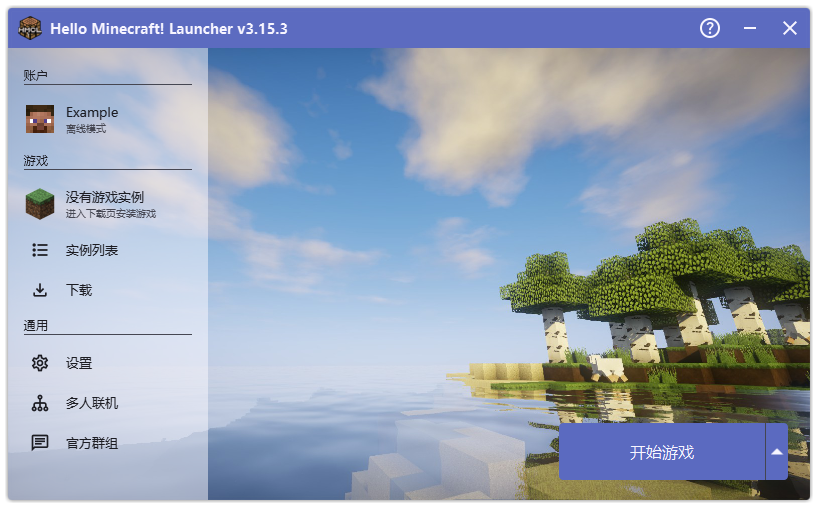
If you have not yet installed any instance (that is, you have never installed any game version), you can directly click “Start Game”. HMCL will automatically install the latest release version of Minecraft and launch the game.
If you want to download more instances (you can also follow this method for the first download), proceed as follows:
On the main interface, find and click the “Download” button on the left.
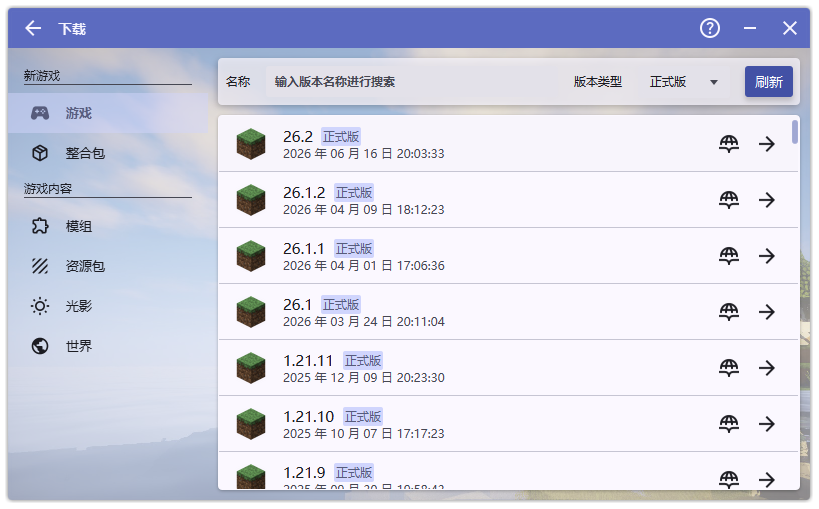
On the download page, click the “Games” tab at the top of the left side. It lists all available game versions (version numbers are sorted from top to bottom, from newest to oldest). Choose a version you like. We usually recommend the latest release version.
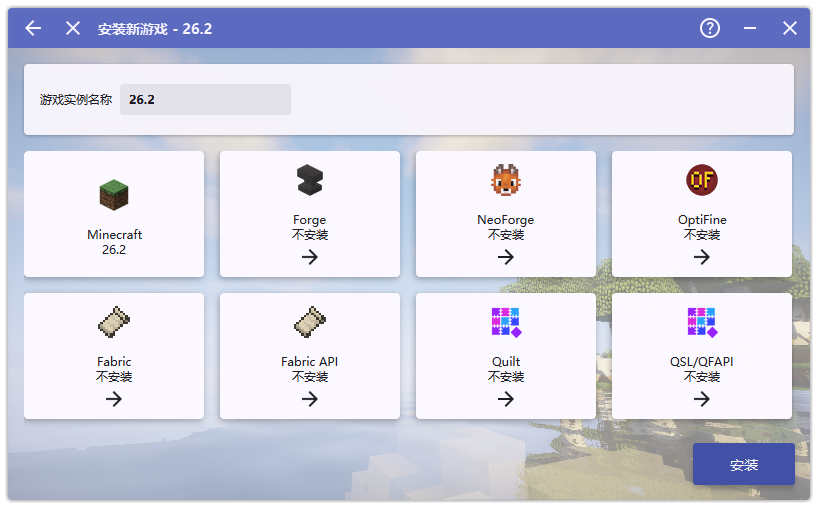
Click the “Install” button in the lower right corner, and HMCL will automatically download and install it for you.
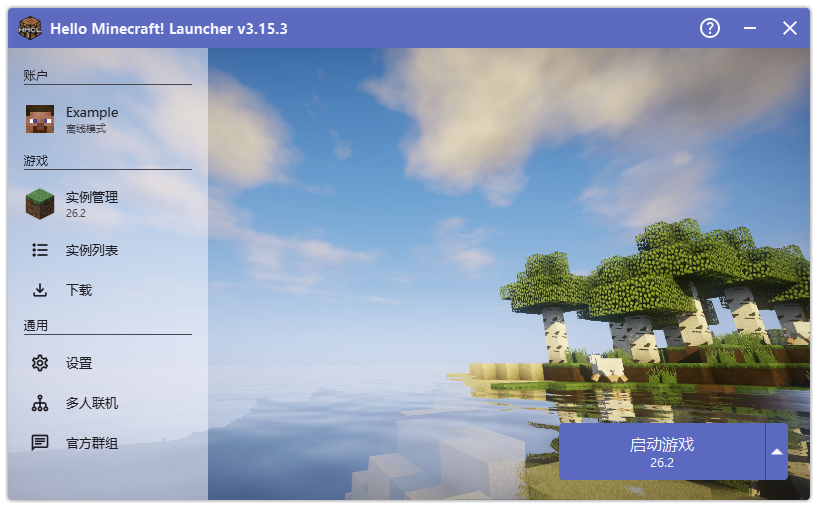
Now return to the main interface, click the “Launch Game” button in the lower right corner, and begin your creation!
What is the gameplay like
While waiting for the game to download, why not first learn about its core gameplay.
As a sandbox game, to put it simply, the core gameplay is “breaking” and “creating”. You can freely explore the world, collect resources, build your home, challenge monsters…
For beginners, the following official Chinese Wiki links are the best starting points:
- Must-read for beginners: Minecraft Wiki Beginner’s Handbook
- Survival first-day guide: Tutorial: How to get through the first day
What is a resource pack
You may have heard other players discussing good-looking “texture packs” (材质包).
“材质包” usually refers specifically to a “resource pack” that modifies the game’s textures, and it is also the term used by Minecraft 1.5 and earlier versions.
“材质” and “材质包” are old mistranslations; the current official Chinese terms are “纹理” (texture) and “纹理包” (texture pack). If you see someone discussing a 材质包, they generally mean a texture pack.
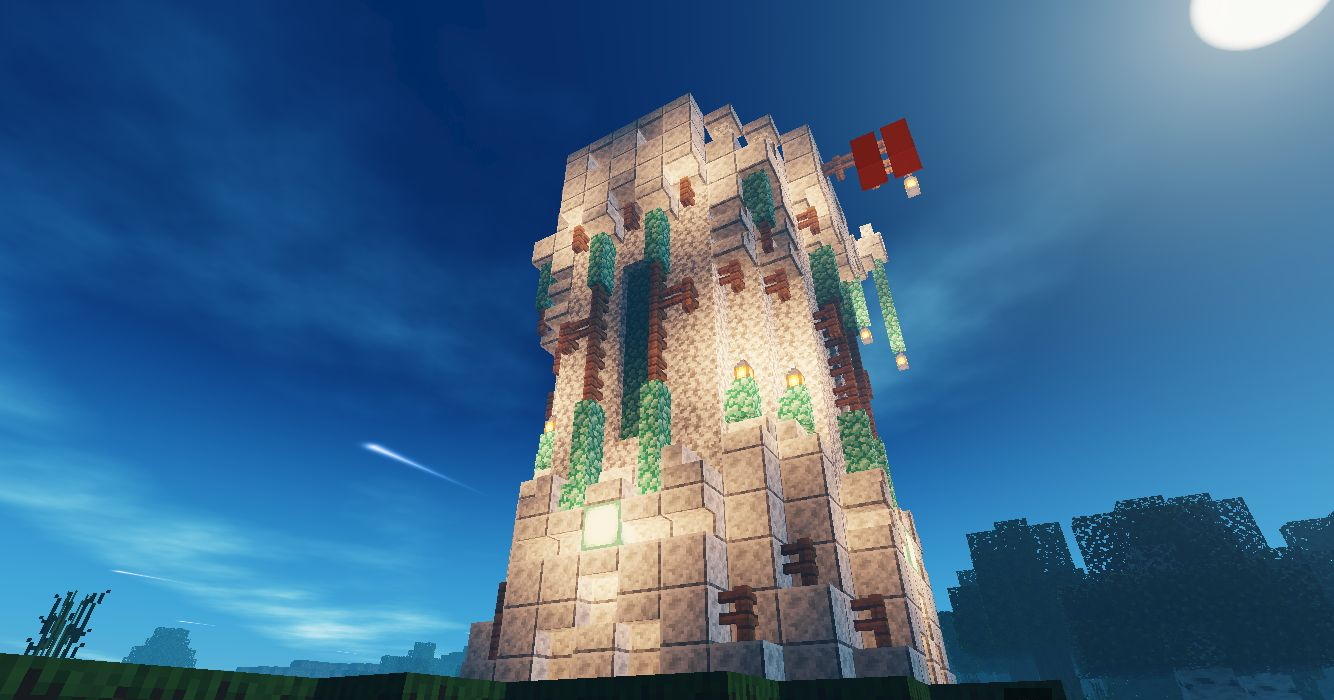
A “resource pack” is a file that can modify various resources in the game, such as textures, models, music, sound effects, and language files, and it can greatly change the look and feel of the game. A good resource pack can greatly improve your audio-visual experience.
- How do I use a resource pack? See Tutorial: Loading a resource pack.
- Want to make your own resource pack? Learn more in Resource pack details.
You can get resource packs from the following websites:
What is a mod
You may have heard that Minecraft has a rich ecosystem of mods. A mod is a powerful tool that can change or add game content; it allows you to add new blocks, mobs, items, mechanics, and more. By installing mods, you can get richer content, a smoother gameplay experience, and better audio-visual presentation.
You can find mod information on the following websites, and download and install mods within HMCL:
HMCL tutorial on automatic mod installation and usage: Go
What should I do if the game reports errors after installing mods
It is common for the game to fail to start or crash after installing mods; it is usually caused by mod conflicts or missing prerequisite mods. Don’t worry, most problems can be solved easily.
At the end of HMCL’s “Introduction to Automatic Installation and Mod Download”, common solutions are covered: Go
Or check the modpack error troubleshooting handbook: Go
If the error cannot be resolved, try seeking help
How to choose the Java version for the game
HMCL manages Java automatically and automatically selects a suitable Java version for different game versions. If no suitable Java is detected when launching the game, HMCL will also prompt you to download Java (click “Download” to complete the installation). For beginner players, manually changing the Java version is not recommended—this may cause the game to crash. Just use the default settings.
If you really need to install and specify a Java version manually:
Installing Java:
- Go to Settings -> Java Management, which displays the Java versions installed by HMCL or already installed on the system.
- If you need to download Java, click “Download Java”, select the desired version, and then click “OK”.
- If you have installed Java but HMCL does not recognize it, select “Add Java”, find the
java.exefile (Windows only) or thejavafile (Linux/macOS only) in the installation path of the Java you need, and then click OK.
Selecting Java:
- If you want all instances to use the same Java version, go to “Settings -> Global Game Settings” and select the Java to use. This Java will be used for all instances that use global game settings (generally not recommended).
- If you only need to specify a Java version for a certain instance, go to the instance’s “Instance Management Interface -> Game Settings” (check “Enable instance-specific game settings”), and then select the Java to use. This Java will only be used for launching that instance.
Important note: If you encounter any game crash or failure to start after changing Java, immediately switch back to the default Java version used by HMCL.