Modpack Error Troubleshooting Handbook
Folder Structure
First we need to understand the folder structure of Minecraft.
If you have enabled version isolation, your folder structure is as follows:
.minecraft
|*assets         # Game assets folder, stores resources such as textures and sounds
|*libraries      # Dependency libraries folder, stores the various libraries required to run the game
|*versions       # Versions folder, contains all installed Minecraft versions
    \1.16.5-optifine
        |1.16.5-optifine.jar   # Main program jar file of this version
        |*saves               # Saves folder, visible only to this version
        |*resourcepacks        # Resource packs folder, visible only to this version
        |*logs                # Logs folder, visible only to this version
        |*mods                # Mods folder, visible only to this version
        |*config              # Config folder, visible only to this version
        |*crash-reports       # Crash reports folder, visible only to this version
        ...
If you have not enabled it, it looks like this:
.minecraft
|*assets         # Game assets folder, stores resources such as textures and sounds
|*libraries      # Dependency libraries folder, stores the various libraries required to run the game
|*saves          # Saves folder, shared by all versions
|*resourcepacks  # Resource packs folder, shared by all versions
|*logs           # Logs folder, shared by all versions
|*mods           # Mods folder, shared by all versions
|*config         # Config folder, shared by all versions
|*crash-reports  # Crash reports folder, shared by all versions
|*versions       # Versions folder, contains all installed Minecraft versions
    \1.16.5-optifine
        |1.16.5-optifine.jar   # Main program jar file of this version
        ...
We strongly recommend enabling version isolation, because it can avoid some conflicts between mods Learn more
Quick Troubleshooting
When you encounter an error, you can perform a preliminary analysis in the following two ways:
Use a community analysis tool
Visit the CrashMC error analyzer and paste the content of the crash report into it; the tool will automatically analyze common problems and give suggestions.Analyze with the help of AI
You can paste the crash log into DeepSeek Chat and let the AI help you interpret the error content and possible solutions.Join the HMCL clinic You can ask for help in the HMCL emergency group; the members there usually have rich experience and can help you analyze the error and provide solutions.
qq : 666546887
All three methods can help you quickly locate the problem and improve troubleshooting efficiency.
Asking Others for Help
When the game crashes there is a window from which you can export an archive, and you can send it to others so that they can take a look for you. Please do not take a screenshot of that window *kowtow
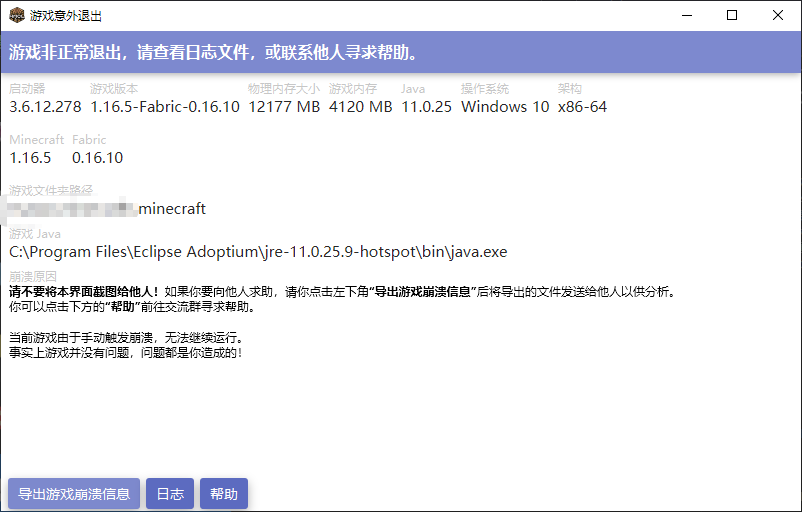 When asking others for help, it is recommended that you pack and send the relevant files in the
crash-reports folder and the logs folder under the .minecraft folder (such as the latest crash report and log file).
This allows the other person to understand your running environment and error details more comprehensively, so that they can help you analyze and solve the problem more efficiently. Please note that you can check the log content before sending it to avoid leaking personal privacy information.