Installing Fabric & OptiFine Together
In HMCL’s automatic installation, if you select Fabric or OptiFine first, HMCL will report that they are incompatible with each other.
However, with a few simple steps described in this document, you can install a Fabric & OptiFine client at the same time.
The principle is to install the OptiFabric Fabric mod, which takes the official OptiFine and makes it compatible with Fabric at runtime.
If you use OptiFine purely to improve performance, use the zoom button, or get dynamic lighting, other mods can provide these features individually with more reliable compatibility.
How to Do It
1. First select a version, select Fabric, and install it.

Note: if you want to add other Fabric mods, it is recommended to install Fabric API as well, since some Fabric mods depend on it.
2. Obtain and install the OptiFabric mod & OptiFine
Obtaining
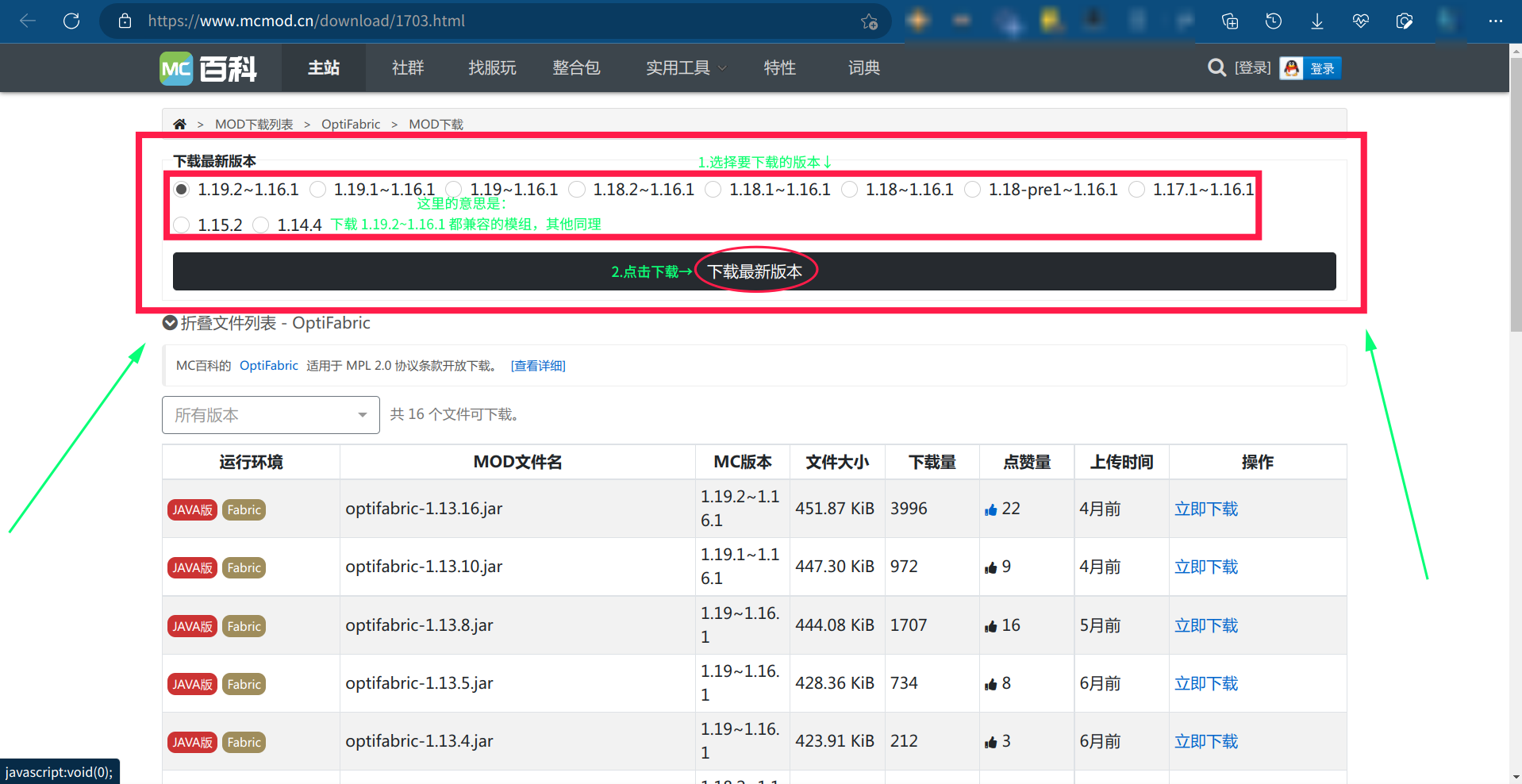
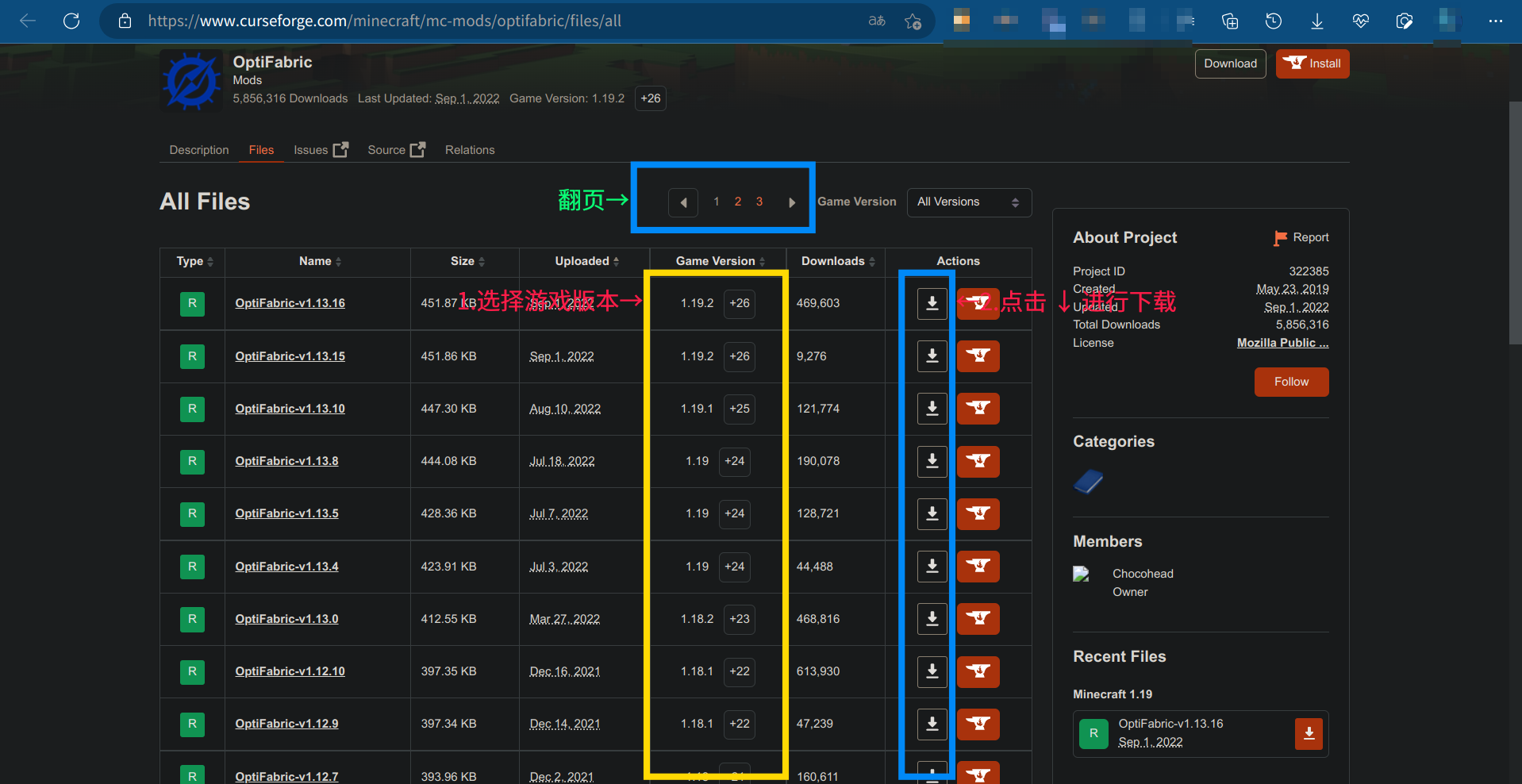
- 1) Obtain OptiFabric: you can get it from its MCMod download page (recommended), its CurseForge page, or by searching for mods in HMCL
MCMod download page (recommended)
Downloading from the CurseForge page:
Downloading via HMCL’s mod search:

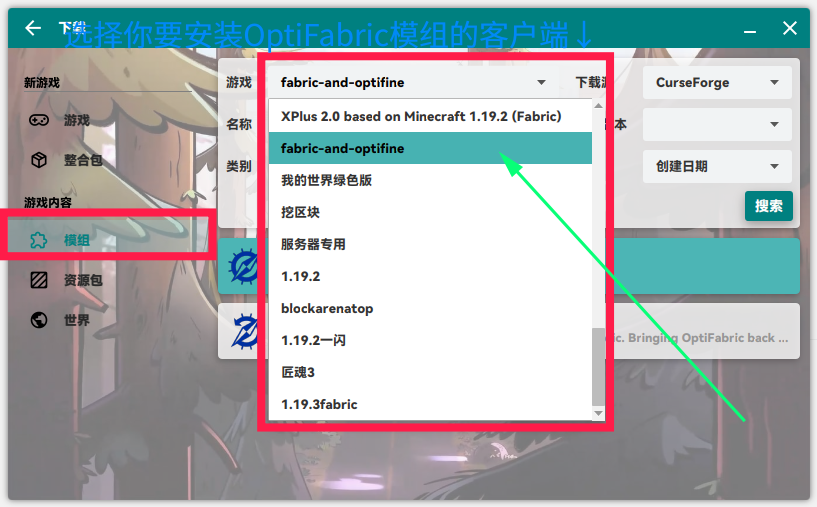
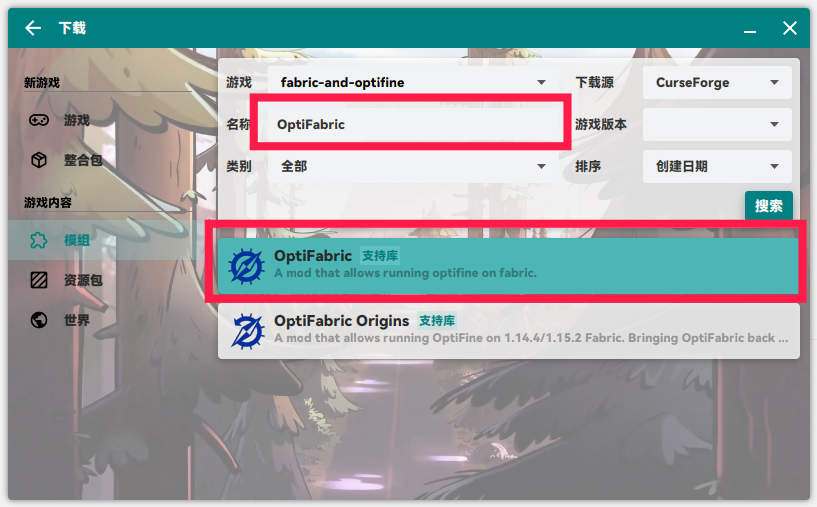
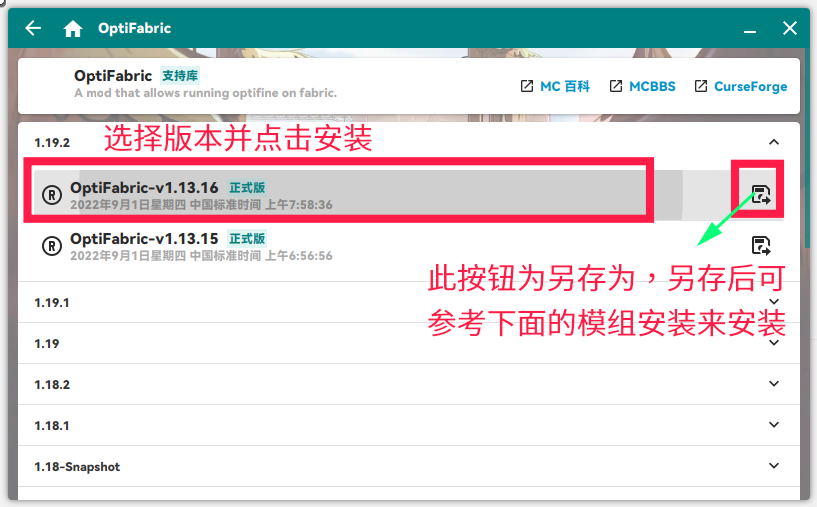
Note: if you use “Save As” when downloading a mod through HMCL’s mod search, you will need to install it using the mod installation method described below.
- 2) Obtain OptiFine: you can download it from its page or the unofficial Chinese page
Operations on the OptiFine page:
Operations on the unofficial OptiFine Chinese page:
Installing
Open the game management page for the game version you want to install mods for, switch to Mod Management, and add the OptiFabric mod & OptiFine on this page.

Then check in Mod Management whether the OptiFabric mod & OptiFine are present!
Once you have checked, you are done — just launch the game.