Signing In to a Microsoft Account with a Password
Why Sign In with a Password
We have found that some accounts may encounter device code flow authorization issues when attempting to sign in by non-password methods, and thus cannot sign in successfully. After we recommended that these users switch to password sign-in, their sign-in success rate improved significantly.
How to Sign In to a Microsoft Account with a Password
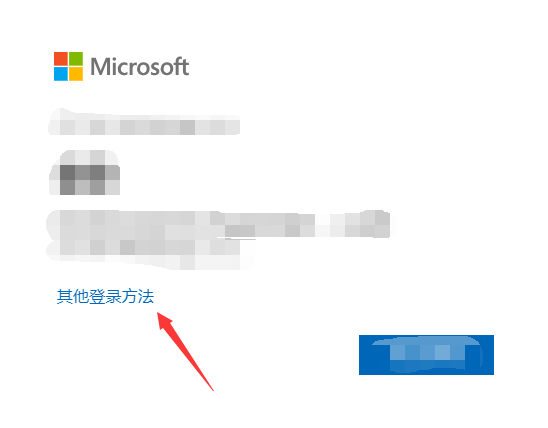
- When signing in, check whether the sign-in page has an “Other ways to sign in” option. As soon as you see this option, click it immediately.
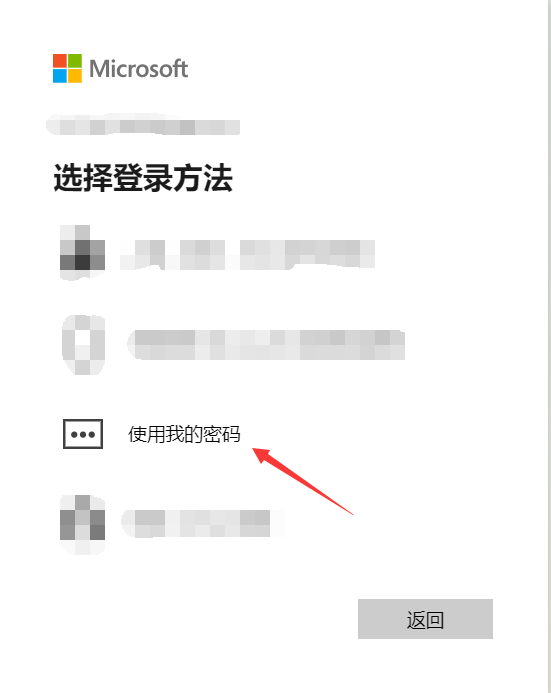
- On the sign-in page, the system will ask which sign-in method you want to use. Select “Use my password”, then enter your password to complete the sign-in.
If there is no “Use my password” option, or if you have forgotten your password, see the tutorial below.
Add or Change a Password
Some accounts may not have a password set up for sign-in, or you may have forgotten the password. Please follow the steps below:
Go to the Add/Change Password page;
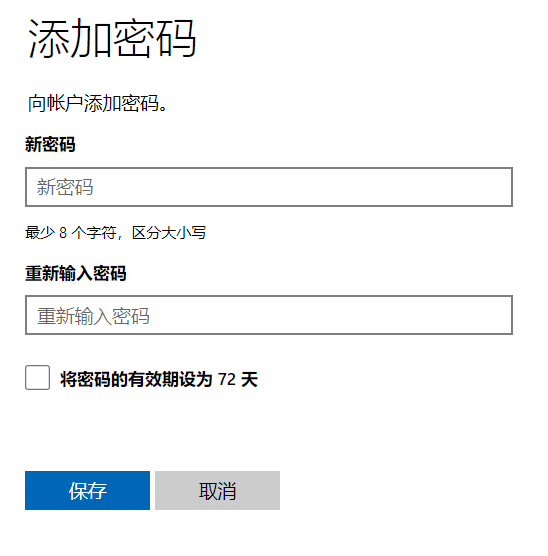
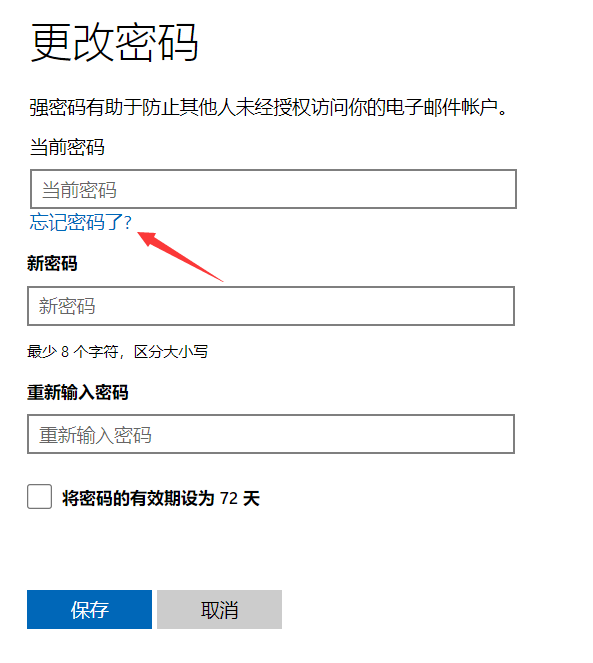
Follow the instructions on that page to add a password. If you have forgotten your password, you can choose the “Forgot password?” option on that page to recover it.
After completing the steps above, follow the tutorial above to sign in to your Microsoft account with a password.